Dark Mode in Pasco Cloud
 The Ginger Bear 15 Feb 2026 3 min read
What is dark mode?
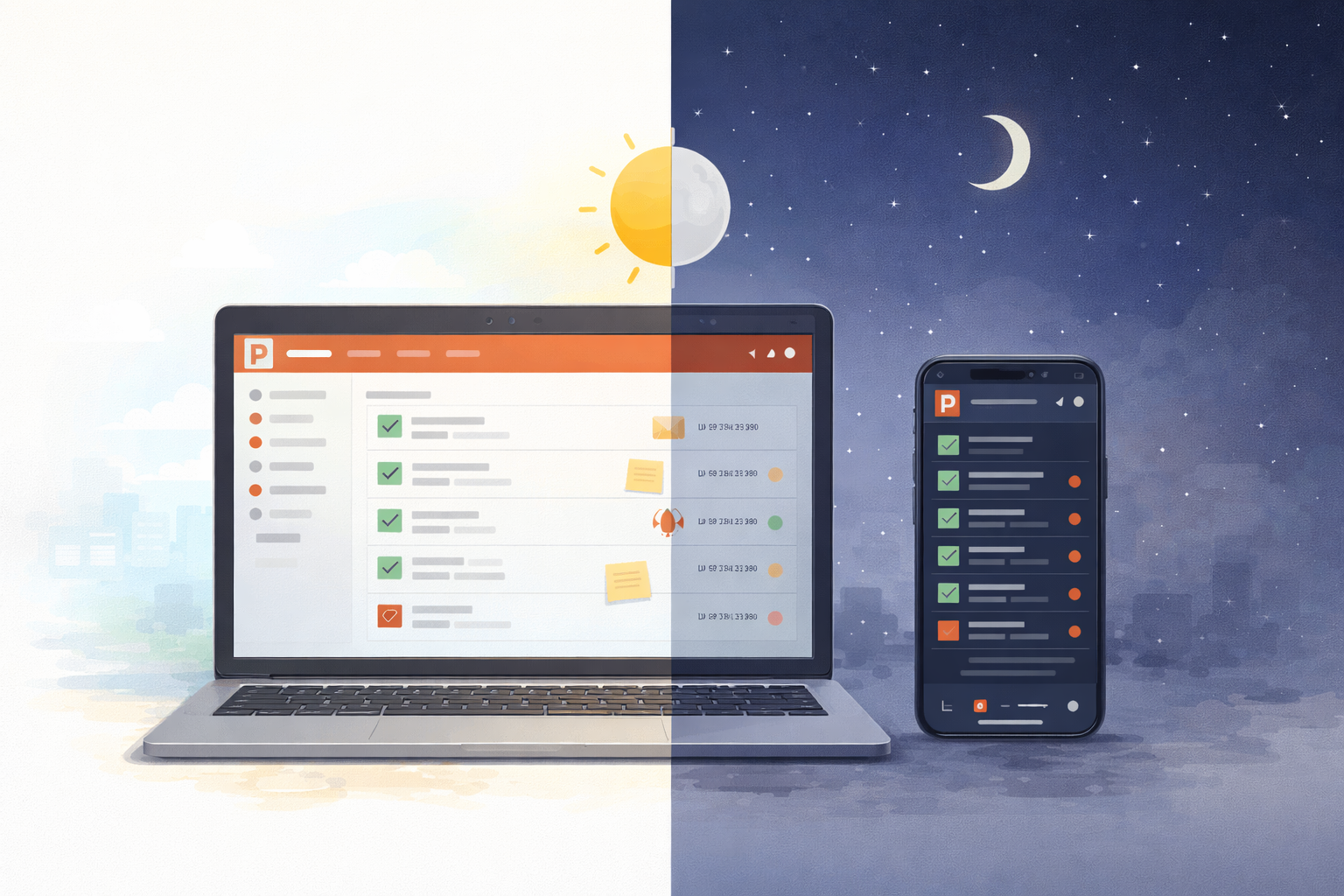
Dark mode flips your screen's colour scheme — instead of dark text on a white background, you get light text on a dark background. It's become a standard feature in modern apps, and for good reason.
If you've ever opened an app at night and been blinded by a wall of white, you already understand the problem dark mode solves.
Why it matters
Easier on the eyes. Staring at a bright screen for hours causes eye strain, especially in low-light environments. Dark mode reduces the amount of light your screen throws at your face. If you're reviewing reports in the office at 6pm or checking issues on site at dawn, the difference is noticeable.
Better for battery life. On devices with OLED or AMOLED screens — which includes most modern phones and many newer laptops — dark pixels use less power than bright ones. A dark interface can meaningfully extend your battery life. When you're on a construction site without a charger, that matters.
Less visual fatigue over long sessions. Construction project management isn't a quick-glance app. You might spend an hour building a template, reviewing reports, or working through an issue backlog. Dark mode makes those long sessions more comfortable.
It just looks good. There's a reason every major platform supports it. A well-designed dark interface feels modern, focused, and professional.
Dark mode in Pasco Cloud
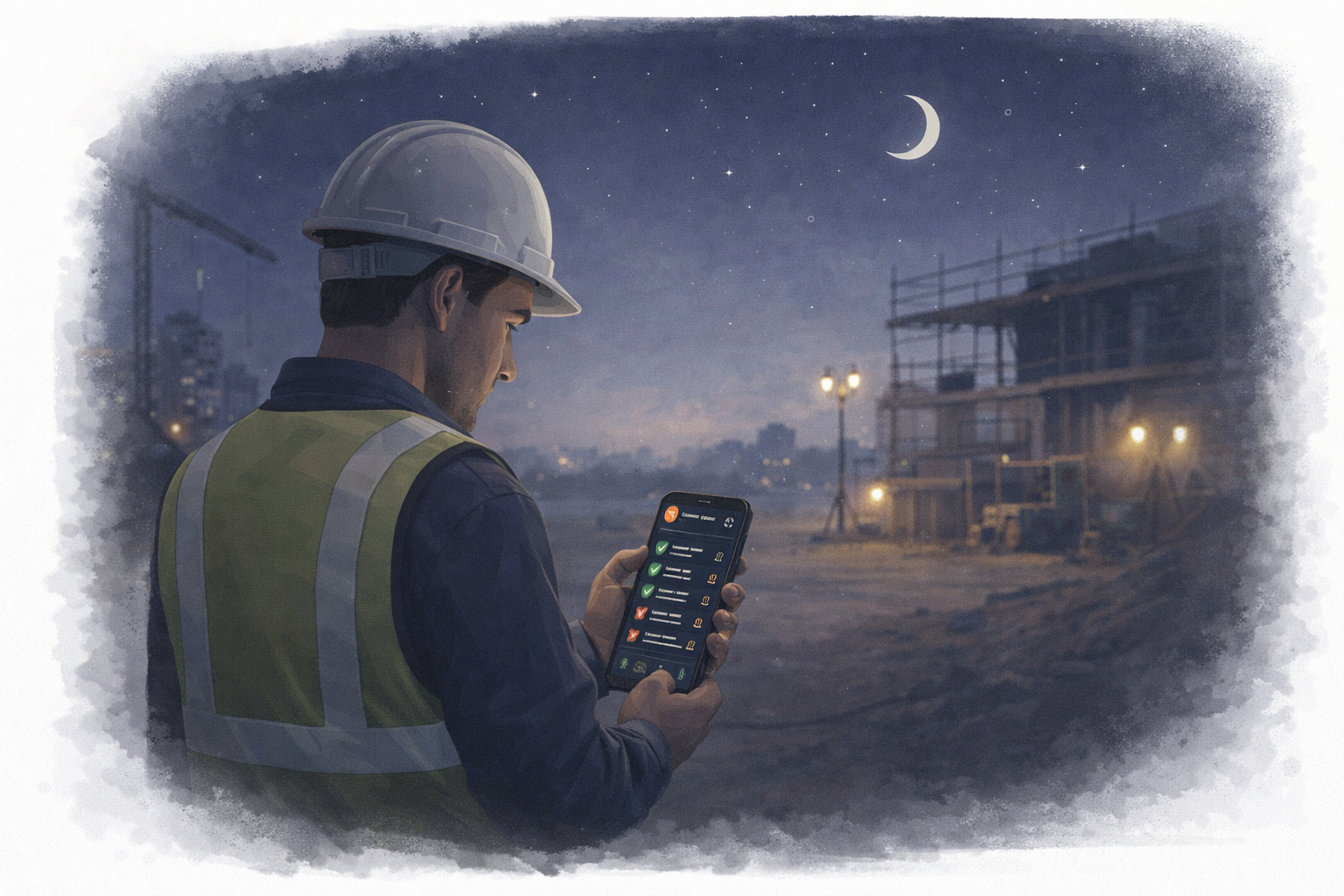 Pasco Cloud supports three display modes: light, dark, and system. System mode automatically matches whatever your device is set to — so if your phone switches to dark mode at sunset, Pasco Cloud switches with it.
The dark theme isn't an afterthought bolted on top of a light design. Every screen, component, and colour in Pasco Cloud has been considered in both modes. Buttons, badges, cards, form fields, the template builder, report previews — everything adapts.
How to switch
From the settings page:
- Log in to Pasco Cloud
- Open Settings from the sidebar menu
- Under the Appearance section, choose your preferred mode:
- Light — classic bright interface
- Dark — dark background, light text
- System — follows your device setting automatically
- The change takes effect immediately — no need to refresh
Quick toggle:
You can also switch modes directly from the sidebar. Look for the theme toggle at the bottom of the sidebar menu — one click cycles through your options.
Try it now
Already logged in? Head to Settings → Appearance and give dark mode a spin. If you spend any amount of time in the app, your eyes will thank you.
Not a user yet? Sign up for the beta and see for yourself.